

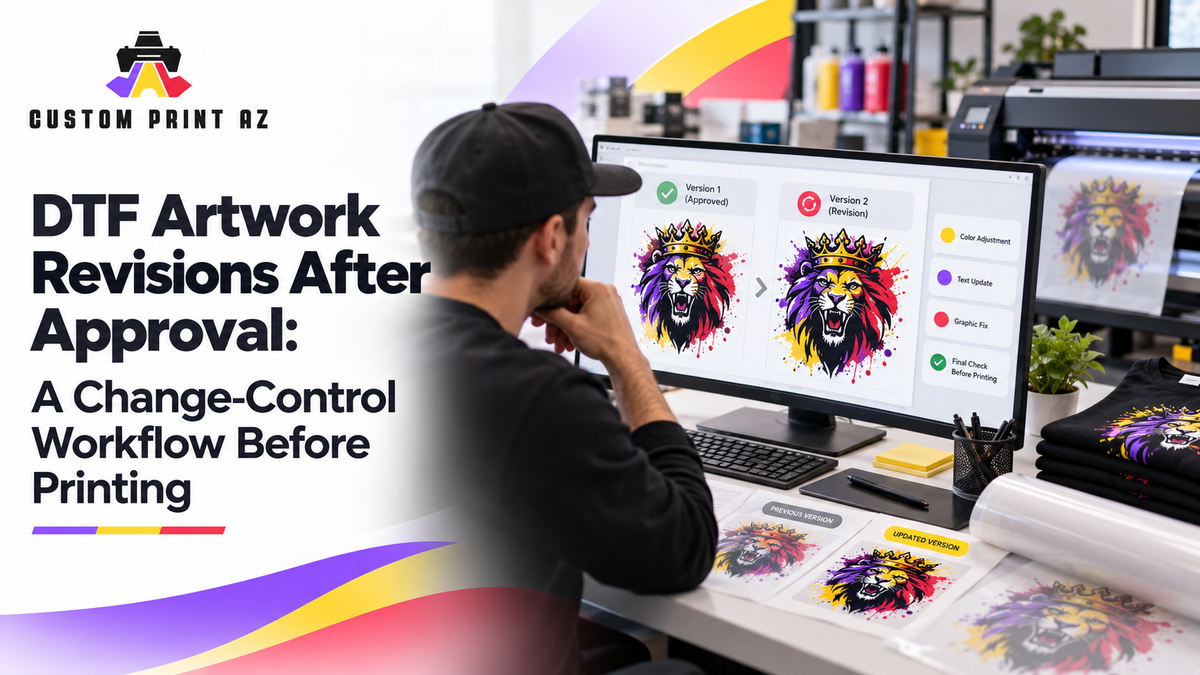
When a DTF artwork file has already been approved, receiving a new revision does not simply mean that a newer file now exists. The more important question is whether that change affects the approval that was already given and which file should now be treated as the authorized production file.
The risk becomes greater as an order gets closer to production. An older file may already be marked “approved” in an email or message thread, while a revised file arrives later under a slightly different name. If production automatically uses the newest attachment, or if an old approval is silently applied to the revised artwork, a version that was never actually approved could move forward.
A good change-control workflow does not require rebuilding the entire order every time something changes. The goal is to identify what changed, which earlier decisions are affected, and which file is now authorized for production. For broader order planning and production-readiness guidance, the DTF transfer ordering and production guide provides wider context. This article focuses on one narrower problem: controlling artwork changes that arrive after approval.
Do Not Treat “Approved” as Separate From the File
Artwork approval should be understood in relation to the specific file or visual state that was reviewed. If a different artwork file is submitted later, the previous approval should not automatically be assumed to apply to that revision.
For example, a customer may approve one logo version and later send another file with a revised slogan. The first artwork has a documented approval history. The second file does not automatically inherit that history simply because it is related to the same order.
This distinction becomes especially important when file names are similar. Labels such as “final,” “final-new,” “final-2,” or “latest” do not clearly identify which artwork carries the current production authorization.
In a safer workflow, it is useful to connect each approval status to a specific artwork reference so the team can tell exactly which version was reviewed.
Classify the Change Before Deciding What Needs to Be Reopened
Not every update affects the order in the same way. When a new file or instruction arrives, the first question should not be, “Does everything need approval again?” First determine what actually changed.
Graphic or Visible Artwork Change
If the logo, wording, color choice, name, number, image element, or another visible part of the design has changed, the artwork itself has changed. The previously approved image may no longer match what would be printed.
In that situation, the old approval should not simply be carried over to the new file. The revised artwork should be clearly identified, and its approval status should be checked again within the order workflow.
Size or Placement Change
Sometimes the graphic stays exactly the same while the transfer size or garment placement changes. The same logo, for example, may have originally been planned for a left-chest position and later be requested as a larger back print.
The artwork may still be visually unchanged, but the production specification has changed. Artwork approval and production specification confirmation should therefore not be treated as the same decision.
A useful question is: Did the change alter the artwork, the way the artwork will be produced, or both?
Quantity Change
A quantity update is not automatically an artwork revision. A customer may simply want more or fewer transfers using the same approved design.
If the artwork itself has not changed, a quantity adjustment should not automatically trigger a new artwork decision. The primary effect may be on the order quantity rather than on the approved visual.
Separating these change types keeps artwork control focused on the decisions that actually changed.
When Should an Old Approval Stop Being Used for Production?
The key boundary is whether the file intended for production is still the same version that was approved. If it is no longer the same decision object, the previous approval should be reconsidered.
Common warning signs include:
- a visible design change has been made;
- text, names, numbers, or branding elements have changed;
- a different artwork variation has replaced the earlier one;
- a new file was created after approval and the scope of the change is unclear;
- artwork changes arrived together with new size or placement instructions;
- the message history no longer makes it obvious which version was actually approved.
The point is not to create a rigid rule that every new file must always go through an entirely new approval process. Different organizations may manage approvals differently. The important control is to prevent an old approval from being silently attached to artwork that has changed.
Revision Numbers and Timestamps Identify Files, Not Approval

Revision numbers, dates, or timestamps can make it easier to distinguish one artwork file from another. A naming pattern such as Artwork-R01, Artwork-R02, and Artwork-R03 can provide much more clarity than several files all called “final.”
However, the newest file is not necessarily the approved production file.
R03 may be the most recently created revision while R02 remains the last version that was explicitly approved. A useful reference system therefore needs to answer two separate questions:
- Which revision is this?
- What is the current approval status of this revision?
Keeping those questions separate becomes particularly useful when several changes arrive within a short period of time.
Do Not Leave the Old File Active After a Change Request Arrives
One of the most avoidable risks in artwork change control is allowing the old approved file to remain visible as the active production file while a new revision is being reviewed.
A new revision does not have to be sent directly into production. At the same time, the previous version should not continue moving forward as though no change had been received.
For example, a simple internal record could temporarily use logic such as:
- previous artwork: previously approved, but now under review because a new change was received;
- revised artwork: received, but production status not yet confirmed;
- production file: not finalized until the change is classified and the required approval checks are complete.
This is only a practical workflow example, not a required Custom Print AZ status system. Its purpose is to avoid having two artwork files appear active at the same time.
If Production Has Not Started, Reopen Only the Decisions the Revision Affects
When a revision arrives before production begins, the process can usually stay focused. First classify whether the change affects artwork, size, placement, quantity, or a combination of those areas. Then recheck only the decisions that are actually affected.
If only quantity changed, the visual approval may still refer to exactly the same artwork. If the logo changed, however, the earlier approval should not automatically be treated as approval for the new artwork.
This distinction keeps the workflow controlled without turning every change into a complete restart of the order.
If Production Has Started, Treat the Revision as a New Operational Situation
A revision that arrives after production has already started creates a different situation. The new file does not retroactively change what was previously sent into production.
Before evaluating the revision, clarify the current state:
- Has production not started yet?
- Has part of the job already entered production?
- Which artwork reference was released for production?
- Which part of the order or future production is the new revision intended to affect?
The exact operational response may depend on the order and production status. The important control is to record the new revision separately from the artwork that was already released so the two situations are not confused.
Do Not Reduce Multiple Changes to a Single “New File” Note
A customer may change several things in one revision. A logo might be updated while the transfer size and placement are changed at the same time. A note that simply says “new artwork received” does not explain which earlier decisions may need to be revisited.
A change request can be broken down briefly:
- graphic: changed;
- text: unchanged;
- transfer size: changed;
- placement: changed;
- quantity: unchanged.
This lets the team see not only that a new file exists, but also exactly where it differs from the previously approved version.
It can also prevent unnecessary rechecking by separating unchanged decisions from the parts that genuinely need another review.
Make the Final Production File Obvious in One Place
At the end of the change-control process, the most important output is not a long revision history. Production should be able to answer one question without hesitation:
Which file is the one that should be printed now?
A clear final production record can identify:
- the final artwork reference;
- the applicable revision number or timestamp;
- the current approval status;
- the final size or placement reference when needed;
- a clear indication that earlier artwork versions are no longer the active production file.
Older revisions do not necessarily need to be deleted. Keeping them can be useful for history and troubleshooting. The important point is to separate historical files from the one version currently authorized for production.
Five Questions Before Final Production Release
After a revision, the workflow is much clearer if five questions can be answered before production release:
- What changed? Artwork, size, placement, quantity, or multiple areas?
- Which earlier decision is affected? Does the existing approval still describe the artwork that would now be printed?
- What is the approval status of the new revision? Is it merely the newest file, or is it actually cleared for production?
- Is the previous file still being treated as active anywhere in the job record?
- Has one final production file been clearly identified?
These questions are not meant to add bureaucracy. They are designed to keep the question “Which version was final?” from resurfacing when the job is already entering production.
Frequently Asked Questions
Does a new artwork file automatically cancel the old approval?
Not necessarily. First determine what changed. If the visible artwork has changed, the earlier approval should not automatically be assumed to apply to the new revision. If only an artwork-independent detail such as quantity changed, the artwork approval may not be affected in the same way.
Is the most recently submitted file automatically the production file?
No. The newest file is only the latest file chronologically. It should become the production file only after the required artwork and production checks for that revision are complete.
Is naming a file “FINAL” enough?
No. Multiple files can end up being labeled “final” over the life of an order. A revision reference or timestamp combined with a clear approval status provides a more useful distinction.
If only the size changes, does the artwork need to be treated as changed?
The artwork itself may remain unchanged while the production specification changes. The workflow should distinguish an artwork change from a size or placement change and recheck the decisions that the update actually affects.
Control the Production Authorization, Not Just the Revision History
Managing artwork revisions is not about creating as many versions as possible or building a complicated archive. The real objective is to make the effect of every post-approval change visible before production continues.
Identify the approved file, receive the change, classify what changed, recheck the affected approval status, and finish with one clearly identified production file. That is what keeps an older approval from being applied to artwork it never actually covered.
Once the final artwork, transfer size, and production file are clearly established, the next step may be to review DTF transfers by size for the ordering stage.


